
Nissan Leaf 2018-2025 (ZE1) Owner's Manual : Vehicle information display
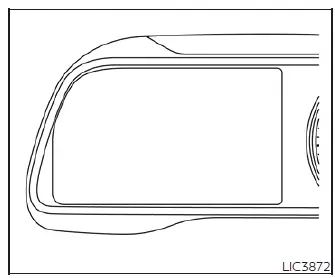
The vehicle information display in your Nissan Leaf is strategically located to the left of the speedometer, serving as the central hub for essential driving data. It provides real-time updates and critical insights to help you optimize your driving experience, including:
- Current battery status and state of charge
- Energy economy and power usage trends
- Average vehicle speed
- Estimated driving range and distance tracking
- Total driving time
- Cruise control status and settings
- Intelligent Key proximity and system information
- Active vehicle indicators and system warnings
How to use the vehicle information display
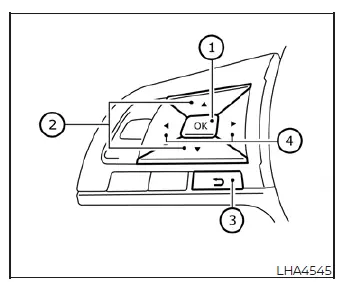
You can seamlessly navigate and customize the information presented on the display by utilizing the steering wheel-mounted controls. The interface is managed using the  ,
,  ,
,  ,
,  ,
,  , and OK buttons located conveniently on the steering wheel.
 Use this button to confirm selections or cycle through available sub-menu items.
 Use these directional buttons to navigate through the various menus of the Nissan Leaf vehicle information display.
 Use this button to step back to the previous menu screen.
 Use these supplemental navigation buttons to scroll through lists and settings.
The OK,  ,
,  ,
,  ,
,  , and
, and  buttons also function as controls for your audio system and other console settings under specific conditions. Most menus provide on-screen prompts to guide you on how to interact with the system. White dots on the left side of the screen indicate that further pages of menu items are available. The OK,
  , and
, and  buttons are also used to change audio sources and manage manual voice recognition modes. For further details on these integrated features, please consult the separate NissanConnect Manual.
Startup display
When you set your Nissan Leaf to the ON position, the vehicle information display will initialize and may present several screens, including:
- Battery information summary
- Audio playback status
- Navigation turn-by-turn data (if equipped)
- Energy Economy statistics
- Driving Aids status
- Urgent system warnings
- Personalization settings
Note that warnings are only displayed if an active system alert requires your attention. To customize the sequence and appearance of these items, refer to the "How to use the vehicle information display" section above.
Settings
The settings menu is the control center for your Nissan Leaf, allowing you to configure the information displayed, adjust system preferences, and toggle various vehicle features on or off.
The available categories include:
- VDC Setting
- Driver Assistance
- Customize Display
- Vehicle Settings
- EV Settings
- TPMS Settings
- Maintenance
- Clock
- Unit/Language
- Factory Reset
VDC Setting
This menu allows the user to adjust the Vehicle Dynamic Control (VDC) preferences to suit driving conditions.

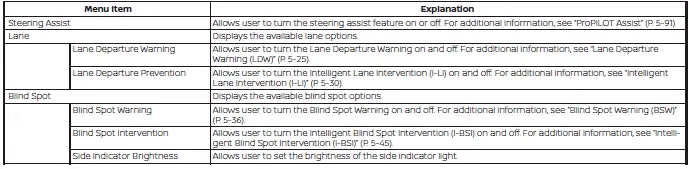
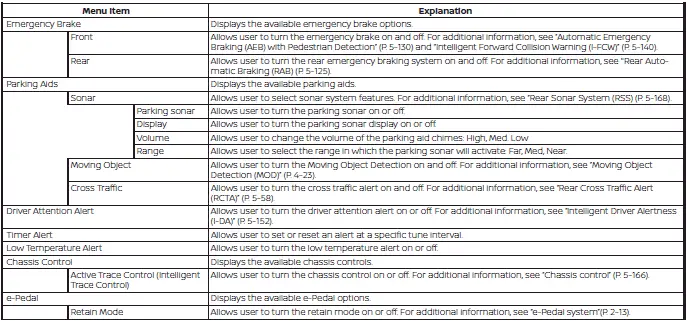
Driver Assistance
Use this menu to fine-tune the settings for your driving, parking, and braking assistance technologies.
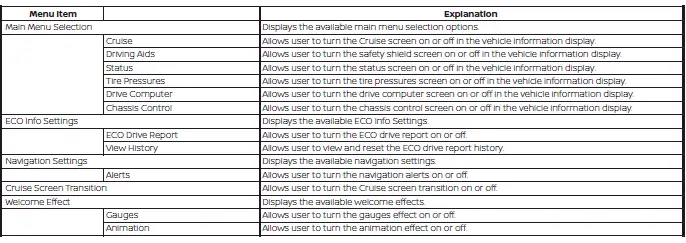
Customize Display
The customize display menu allows the user to tailor the layout and information density of the vehicle information display.
Vehicle Settings
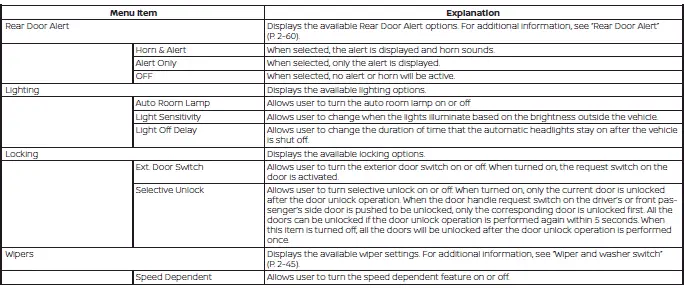
This menu provides access to various vehicle behaviors, including preferences for lighting, door locking, wiper activation, and other convenience settings.
EV Settings
The EV settings menu is dedicated to configuring your Nissan Leaf charging parameters, such as timer settings and charging modes.

TPMS Settings
The Tire Pressure Monitoring System (TPMS) settings menu allows the user to toggle the units of measurement used to display tire pressure.

Maintenance
The maintenance menu allows the user to set and track service intervals for various maintenance items, such as tire rotations or cabin filter replacements.

Clock
Use the clock menu to manually update the date and time settings within the vehicle system.

Unit/Language
This menu allows the user to select the preferred language and units (e.g., metric vs. imperial) shown throughout the vehicle information display.

Factory Reset
The factory reset menu allows the user to revert all custom changes and restore the vehicle information display settings to their original factory-default status.

- Vehicle information display warnings and indicators
- Warning information displays (models with a navigation system)
 Audible reminders
Brake pad wear warning
Your disc brake pads are engineered with audible wear indicators. When a brake pad has reached its service limit and requires replacement, it will emit a distinct high-pitc ...
 Vehicle information display warnings and indicators
Please note that depending on your specific vehicle configuration and trim level, some of the following warning messages may not be applicable to your Nissan Leaf.
EV system o ...
Other materials:
ProPILOT Assist system operation
Steering-wheel-mounted control (left): Dedicated to managing vehicle settings and menu navigation.
Vehicle information display: The primary interface for viewing system status, alerts, and active driver assistance graphics.
Steering-wheel-mounted con ...
Malfunction indicator
Component Function Check
1.CHECK MI FUNCTION
1. Turn ignition switch ON.
2. Make sure that MI lights up.
Is the inspection result normal?
YES >> INSPECTION END
NO >> Go to EC-1019, "Diagnosis Procedure".
Diagnosis Procedure
1.CHECK CAN COMMUNICATION LINE
Refer to LAN ...
Radiator
Exploded View
1. Reservoir tank cap
2. Reservoir tank
3. Clamp
4. Reservoir tank hose
5. Mounting rubber (upper)
6. Reservoir tank hose
7. Radiator
8. Mounting rubber (lower)
9. Drain plug
10. O-ring
11. Cooling fan assembly
12. Radiator hose (upper)
13. Radiator hose (lower)
...
