
Nissan Leaf 2018-2025 (ZE1) Owner's Manual : Operating ProPILOT Assist
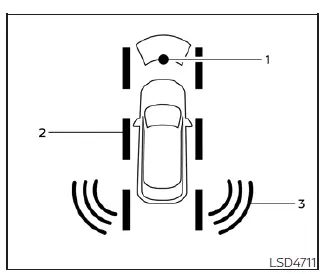
- Automatic Emergency Braking (AEB) with Pedestrian Detection
- Lane Departure Warning (LDW) and Intelligent Lane Intervention (I-LI)
- Blind Spot Warning (BSW)
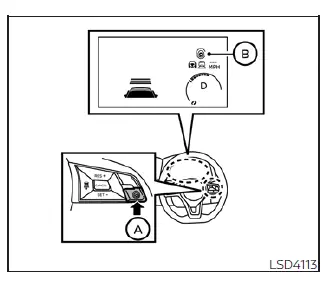
1. Press the ProPILOT Assist master switch (A) to initialize the system within your Nissan Leaf.
2. A confirmation screen will appear briefly on your display, providing a comprehensive status overview of all active driving aid functions.
- The system confirms that AEB with Pedestrian Detection, LDW, and BSW are fully operational when their respective icons are illuminated.
- The Intelligent Lane Intervention (I-LI) icon appears to indicate its current active status.
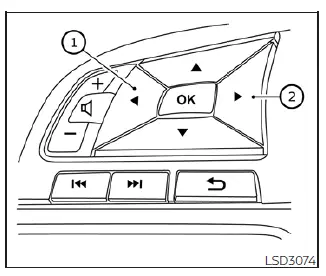
- To customize or modify the status of these individual driving aids, use the navigation buttons (1 or 2) to scroll through the intuitive settings menu.
3. Once active, the real-time status of the ProPILOT Assist system is clearly visualized in the vehicle information display (B).
4. Accelerate or decelerate your Nissan Leaf until you reach your desired cruising velocity.
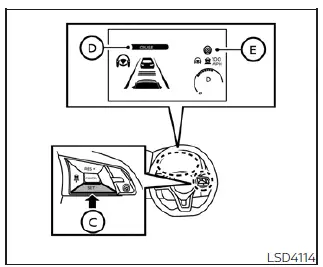
5. Press the SET- switch  . The ProPILOT Assist system will immediately begin to maintain your selected speed automatically. Both the ProPILOT Assist activation indicator (D) and the status indicator (E) will illuminate in blue, confirming system engagement. If you are following a lead vehicle traveling at 20 mph (30 km/h) or less when you press the SET- switch, your target speed will default to 20 mph (30 km/h).
Activating the ProPILOT Assist system simultaneously enables the Intelligent Lane Intervention (I-LI) and Intelligent Blind Spot Intervention (I-BSI) features to enhance your safety.
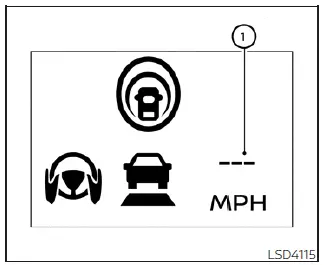
If you attempt to engage the system by pushing the SET- switch under the following conditions, the ProPILOT Assist system will remain unavailable and the speed indicator (1) will blink for two seconds to signal that the request was not accepted:
- Traveling below 20 mph (32 km/h) without a lead vehicle detected.
- The shift lever is positioned outside of D (Drive) or B mode.
- The electric parking brake is currently engaged.
- The driver is actively operating the brake pedal.
- The Vehicle Dynamic Control (VDC) system is manually turned off.
- The VDC system (including traction control) is actively intervening to stabilize the vehicle.
- A wheel slip event is detected.
- Any vehicle door is left ajar.
- The driver's seat belt is not properly fastened.
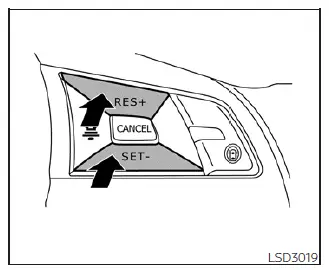
How to change the set vehicle speed
You can fine-tune your cruising speed at any time to match changing traffic flow.
To increase your cruising speed:
- Press and hold the RES+ switch to increase the set speed by increments of approximately 5 mph (5 km/h).
- Briefly press and release the RES+ switch to increase the target speed by a smaller increment of approximately 1 mph (1 km/h) per tap.
To decrease your cruising speed:
- Press and hold the SET- switch to reduce the set speed by increments of approximately 5 mph (5 km/h).
- Briefly press and release the SET- switch to decrease the target speed by approximately 1 mph (1 km/h) per tap.
How to momentarily accelerate or decelerate
- Apply pressure to the accelerator pedal to speed up manually for overtaking; once the pedal is released, your Nissan Leaf will automatically return to the previously stored cruising speed.
- Apply the brake pedal to decelerate immediately, which will cancel the system’s active control. You can press the RES+ switch afterward to resume your last saved speed.
WARNING
When you manually depress the accelerator pedal while the system is engaged and you are closing the distance to the vehicle ahead, the Intelligent Cruise Control (ICC) will not provide automatic braking or issue any audible/visual warnings. You are fully responsible for maintaining manual control to ensure a safe following distance. Failure to intervene can lead to serious injury or fatal consequences.
If you manually accelerate or decelerate to a speed beyond your currently set limit, the speed indicator on your display will flash to alert you.
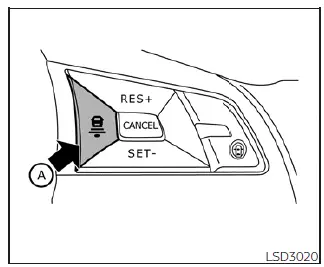
How to change the set distance to the vehicle ahead
You can easily adjust the following gap between your Nissan Leaf and the traffic ahead at any time.
By repeatedly pressing the DISTANCE switch (A), you can cycle through three preset following distances: long, middle, and short.
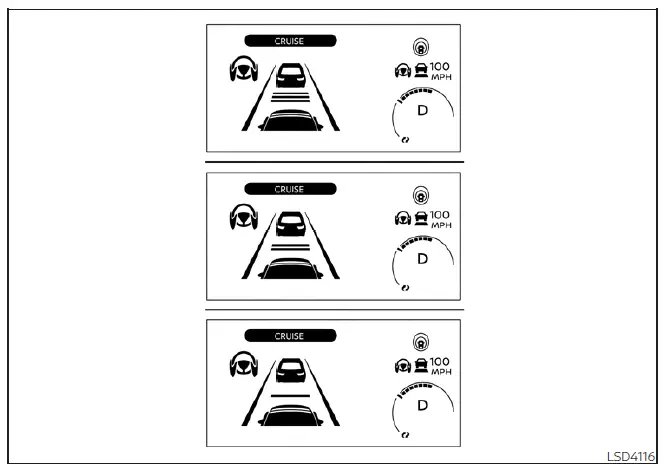
Approximate distance at 60 mph (97 km/h) [ft (m)]:
- Long: 200 (60)
- Middle: 150 (45)
- Short: 90 (30)
- The system intelligently scales the following distance based on your current vehicle speed; higher velocities result in an automatically increased safety buffer.
- Your preferred distance setting is saved in the system memory and will remain active even after you turn off and restart your Nissan Leaf.
 ProPILOT Assist system operation
Steering-wheel-mounted control (left): Dedicated to managing vehicle settings and menu navigation.
Vehicle information display: The primary interface for viewi ...
 How to enable/disable the Steering Assist
Steering-wheel mounted control (right): Used for ProPILOT Assist settings and menu navigation.
Vehicle information display: The digital hub for viewing driver ...
Other materials:
Service data and specifications (SDS)
General Specifications
Steering Wheel Axial End Play and Play
Steering Wheel Turning Force
Steering Angle
Steering Column Operating Range
*: For measuring position, refer to ST-11, "Inspection".
Rack Stroke
Socket Swing Force
*: For measuring position, refer to ST-21, ...
Structure and operation
Positive Crankcase Ventilation
This system returns blow-by gas to the intake manifold.
The positive crankcase ventilation (PCV) valve is provided to conduct crankcase
blow-by gas to the intake
manifold.
During partial throttle operation of the engine, the intake manifold sucks the
blow ...
Periodic maintenance
STEERING WHEEL
Inspection
STEERING WHEEL AXIAL END PLAY
1. Check installation conditions of steering gear assembly, front suspension
assembly, axle and steering column
assembly.
2. Check if movement exists when steering wheel is moved up and down, to the
left and right and to the axial
dir ...
