
Nissan Leaf 2018-2025 (ZE1) Owner's Manual : Intelligent Around View Monitor system limitations
WARNING
Listed below are the vital engineering system limitations for the Intelligent Around View Monitor.
Failure to operate your vehicle in strict accordance with these system limitations could blind the driver to surrounding hazards, which could result in serious personal injury or death.
- Do not attempt to use the Intelligent Around View Monitor while the power folding outside door mirrors are held in the retracted or stored position. Additionally, always make sure that the rear hatch assembly is securely and completely closed when operating the vehicle using the data feeds from the Intelligent Around View Monitor.
- The apparent distance between physical obstacles viewed on the central Intelligent Around View Monitor display screen differs significantly from the actual, real-world distance due to wide-angle lens distortion.
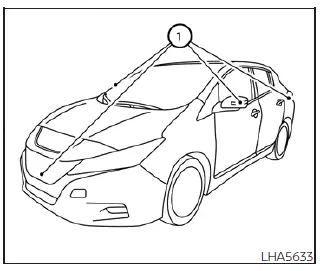
- The specialized panoramic cameras are factory-installed on the front grille mesh, inside the lower housings of both outside door mirrors, and directly above the rear license plate frame. Do not attach aftermarket accessories, brackets, or stickers on the vehicle body that cover or obstruct these cameras.
- When washing the vehicle exterior with high pressure water sprayers, be absolutely sure not to spray the high-velocity jet stream directly around the camera housings. Otherwise, moisture may enter the camera unit casing, causing severe water condensation on the internal lens, an unexpected electronic malfunction, an electrical fire, or a dangerous electric shock.
- Do not strike, bump, or apply physical force to any of the cameras. They are highly fragile precision instruments. Doing so could disrupt internal hardware alignments, cause an immediate system malfunction, or cause permanent internal component damage resulting in a fire or an electric shock.
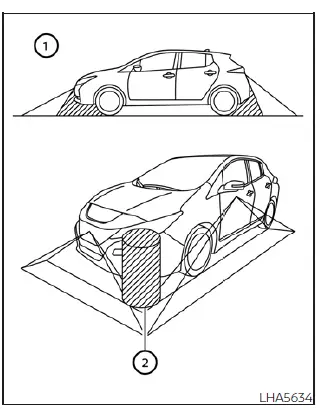
There are some distinct blind zones around the vehicle perimeter where the camera array will not show hidden objects, and the safety system is not programmed to warn of moving objects or pedestrians. When the display is actively running in the standard front or rear view mode, an object positioned below the bumper level or directly on the ground surface may not be viewed 1. When running in the composite bird's-eye view mode, a tall object positioned near the stitching seam 2 of the camera viewing fields will not appear in the combined monitor image.
The following optical phenomena and processing characteristics are standard operating limitations of digital camera technology and do not represent a mechanical or electrical system malfunction:
- There may be a brief processing delay or black frame transition when switching manually or automatically between alternative view angles.
- When the ambient cabin or outside temperature is extremely high or low, the liquid crystal screen responsiveness decreases, and the monitor may not display surrounding objects clearly.
- When blindingly strong light, such as direct sunlight or high-beam headlights, directly shines on the camera lens aperture, lens flare occurs and objects may not be displayed clearly.
- The video image on the screen may flicker or strobe when driving under certain types of external fluorescent street lighting.
- The rendered colors of objects on the Intelligent Around View Monitor screen may differ somewhat from the actual real-world color of those objects due to sensor white-balance processing.
- Objects displayed on the Intelligent Around View Monitor may lose contrast and clarity, and the perceived color of the object may change significantly when operating in a dark, unlit environment.
- There may be noticeable differences in image sharpness, resolution, or brightness between each individual camera feed stitching together the composite bird's-eye view layout.
- Do not apply automotive wax, ceramic coatings, or polish onto the camera lens surfaces. Wipe off any accidental wax residue immediately with a clean, soft cloth that has been dampened with a highly diluted mild cleaning agent, then thoroughly dry the surface with a separate dry microfiber cloth.
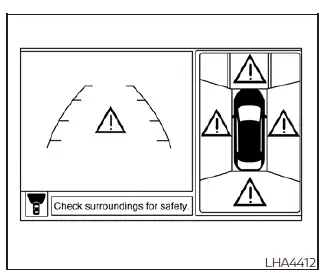
System temporarily unavailable
When the dedicated "!" exclamation point alert icon is displayed on the multimedia screen, it means the diagnostic system has detected abnormal operational conditions within the Intelligent Around View Monitor software or hardware components. While this temporary state will not hinder normal mechanical driving operation or the electric powertrain of your Nissan Leaf, the assist system should be professionally inspected. It is highly recommended that you visit a NISSAN certified LEAF dealer to have this service diagnosed.
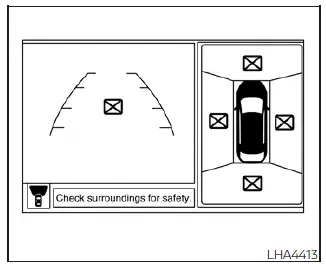
When the specialized "[X]" icon is displayed on the screen, the live camera image transmission may be receiving temporary electronic signal disturbances or radio frequency interference from surrounding external devices or power lines. This temporary phenomenon will not hinder normal driving operation of your Nissan Leaf, but the hardware should be thoroughly inspected if this icon occurs frequently during your regular trips.
It is recommended that you visit an authorized NISSAN certified LEAF dealer for specialized electrical testing and this service calibration.
System maintenance
CAUTION
- Do not use pure rubbing alcohol, benzine, aggressive chemical solvents, or paint thinner to clean the camera bodies or lenses. Applying these harsh chemicals will cause permanent plastic degradation, cracking, and severe surface discoloration.
- Do not scratch, scrape, or apply abrasive scrubbers to the protective optical covers of the cameras, as the monitor screen visibility and clarity may be adversely affected by the resulting abrasions.
If thick road dirt, mud, rain film, or winter snow accumulates on any of the exterior cameras 1, the Intelligent Around View Monitor processing loop will degrade and may not display objects clearly on the console. Safely clean the camera lenses by wiping them down with a soft microfiber cloth dampened with a highly diluted mild cleaning agent, and then thoroughly remove any remaining moisture with a soft dry cloth.
 How to switch the display
With the primary power switch sitting in the active ON position, you can easily activate the system by pressing the physical hardware CAMERA button on the console bezel or by moving the electronic shi ...
 Moving Object Detection (MOD)
CAMERA button (conveniently mounted on the physical display bezel assembly to activate or toggle camera modes)
WARNING
Failure to strictly follow the sa ...
Other materials:
System temporarily unavailable
Condition A
The AEB with Pedestrian Detection system in your Nissan Leaf may automatically deactivate, accompanied by a blinking warning light, when it encounters environmental factors that temporarily impair its ability to monitor the road. This occurs in the following si ...
Electric foldable door mirror does not operate
Diagnosis Procedure
1.CHECK DOOR MIRROR (OPEN/CLOSE MOTOR) CIRCUIT
Check door mirror (open/close motor) circuit.
Refer to MIR-25, "Component Function Check".
Is the inspection result normal?
YES >> GO TO 2.
NO >> Repair or replace the malfunctioning parts.
2.CONF ...
Exhaust gas (carbon monoxide)
WARNING
• Do not breathe exhaust gases; they contain colorless and odorless carbon
monoxide. Carbon monoxide is dangerous. It can cause unconsciousness or death.
• If you suspect that exhaust fumes are entering the vehicle, drive with all windows
fully open, and have the vehicle inspected ...
