
Nissan Leaf 2018-2025 (ZE1) Owner's Manual : BSW system operation
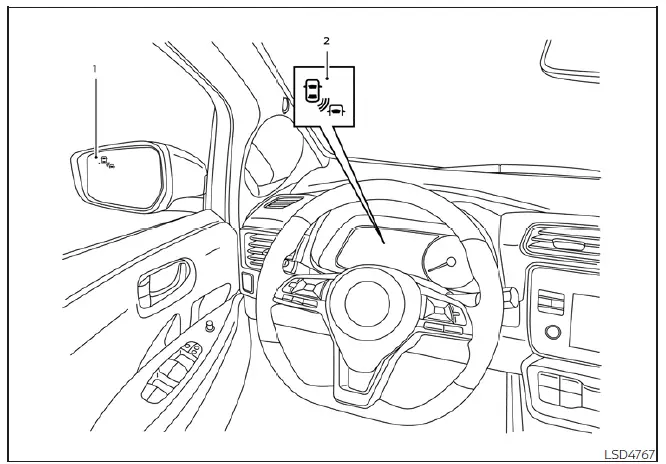
- Side Indicator Light (located on the A-pillar or mirror housing).
- BSW System Status Indicator (located in the instrument cluster).
The BSW system automatically initiates monitoring once your Nissan Leaf reaches a forward driving speed of approximately 20 mph (32 km/h) or higher.
Should the radar sensors detect another vehicle residing within the identified detection zone, the corresponding Side Indicator Light (1) will illuminate to signal a potential hazard. If you activate your turn signal while a vehicle is detected in that lane, the system will escalate the alert: a chime will sound twice, the Side Indicator Light will begin to flash rapidly, and the yellow BSW Indicator (2) will illuminate within the vehicle information display. This flashing warning continues until the detected vehicle successfully clears the monitored detection zone.
Upon setting the power switch to the ON position, the Side Indicator Lights will illuminate briefly for a few seconds as a self-check to confirm system readiness.
If a vehicle enters the detection zone only after you have already activated your turn signal, the system provides a visual warning—the side indicator light will flash—but no audible chime will sound in this specific scenario. For comprehensive details on how the system reacts in various traffic scenarios, please refer to the "BSW driving situations" section of your manual.
The BSW system is designed to reactivate automatically every time the EV system is started, provided that the system was previously enabled via the settings menu within the vehicle information display.
How to enable/disable the BSW system
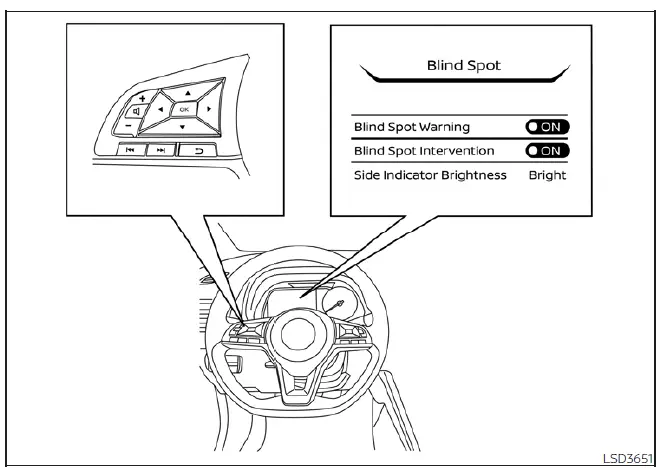
To customize your preferences or enable/disable the BSW system, please follow these configuration steps:
1. Press the steering wheel navigation
 button repeatedly until the "Settings" menu appears prominently on the vehicle information display.
Use the vertical selection
 button to highlight "Driver Assistance," and confirm your choice by pressing the OK button.
2. Navigate to "Blind Spot" within the menu and press the OK button.
3. Finally, select "Blind Spot Warning" and use the OK button to toggle the system's power status between ON and OFF.
NOTE:
Your selected configuration for the BSW system is stored in the onboard memory; it will retain your current ON or OFF setting even after you turn off the vehicle and subsequently restart the EV system.
 Blind Spot Warning (BSW)
WARNING
Failure to strictly adhere to the safety warnings and operational instructions for the proper use of the Blind Spot Warning (BSW) system could result in a collision, potentially causing s ...
 BSW system limitations
WARNING
The following points detail the operational boundaries and inherent limitations of the Blind Spot Warning (BSW) system. Failure to operate your Nissan Leaf with a full understanding of th ...
Other materials:
Precaution Necessary for Steering Wheel Rotation after Battery Disconnect
NOTE:
• Before removing and installing any control units, first turn the ignition
switch to the LOCK position, then disconnect
both battery cables.
• After finishing work, confirm that all control unit connectors are connected
properly, then re-connect both
battery cables.
• Always us ...
P0740 torque converter
DTC Logic
DTC DETECTION LOGIC
DTC CONFIRMATION PROCEDURE
CAUTION:
Be careful of the driving speed.
1.PREPARATION BEFORE OPERATION (PART 1)
If another "DTC CONFIRMATION PROCEDURE" occurs just before, turn ignition
switch OFF and wait for at
least 10 seconds, then perform the next ...
NISSAN Intelligent Key
NISSAN Intelligent Key fob (supplied as two complete sets)
Emergency mechanical key (integrated inside the fob)
Key number plate (one unique metal stamp plate)
Your vehicle is protected by advanced security pairing, meaning it can only be ...
